
How to Set Up and Switch Note Formats in PsyFi Practice
Set your default note format, pick one per session, and switch formats after a note is drafted — plus what GIRP and Narrative add to SOAP, DAP, and BIRP.
Read moreThe full AI therapy note workflow in PsyFi Practice, worked on one session: record, transcribe, reason in chat, draft the documents, review, and sign.

The complete AI therapy note workflow in PsyFi Practice runs in six steps on one session: record it from the Notes tab, let it transcribe when you press stop, review and edit the generated note in your chosen format, optionally pull the transcript into chat to reason about the session, draft any documents it produced in the drafting panel, and sign the note once a clinician — you — has actually reviewed it. The software handles capture and first drafts. The clinical judgment, and the signature, stay with you.
Abstractions are unhelpful here, so this walkthrough follows one session end to end.
It is a Thursday afternoon. Fourth session with a client whose treatment plan, written six weeks ago, is built around work-related anxiety. Today's session was almost entirely about a conflict with their sister, and something in how they described it changed the picture. By the end you have three documentation jobs: a progress note, a treatment plan update, and a decision about whether a psychiatric referral is warranted.
That used to be an hour of after-hours work. Here is the same hour.
All screenshots in this walkthrough use fictional demo sessions. The clients and clinical content are invented for illustration.
Open the Notes tab, click Transcripts in the left sidebar, and press the red record button. The recorder is at /scribe/record if you want to bookmark it.
Fill in the Session details card on the right before the client arrives:
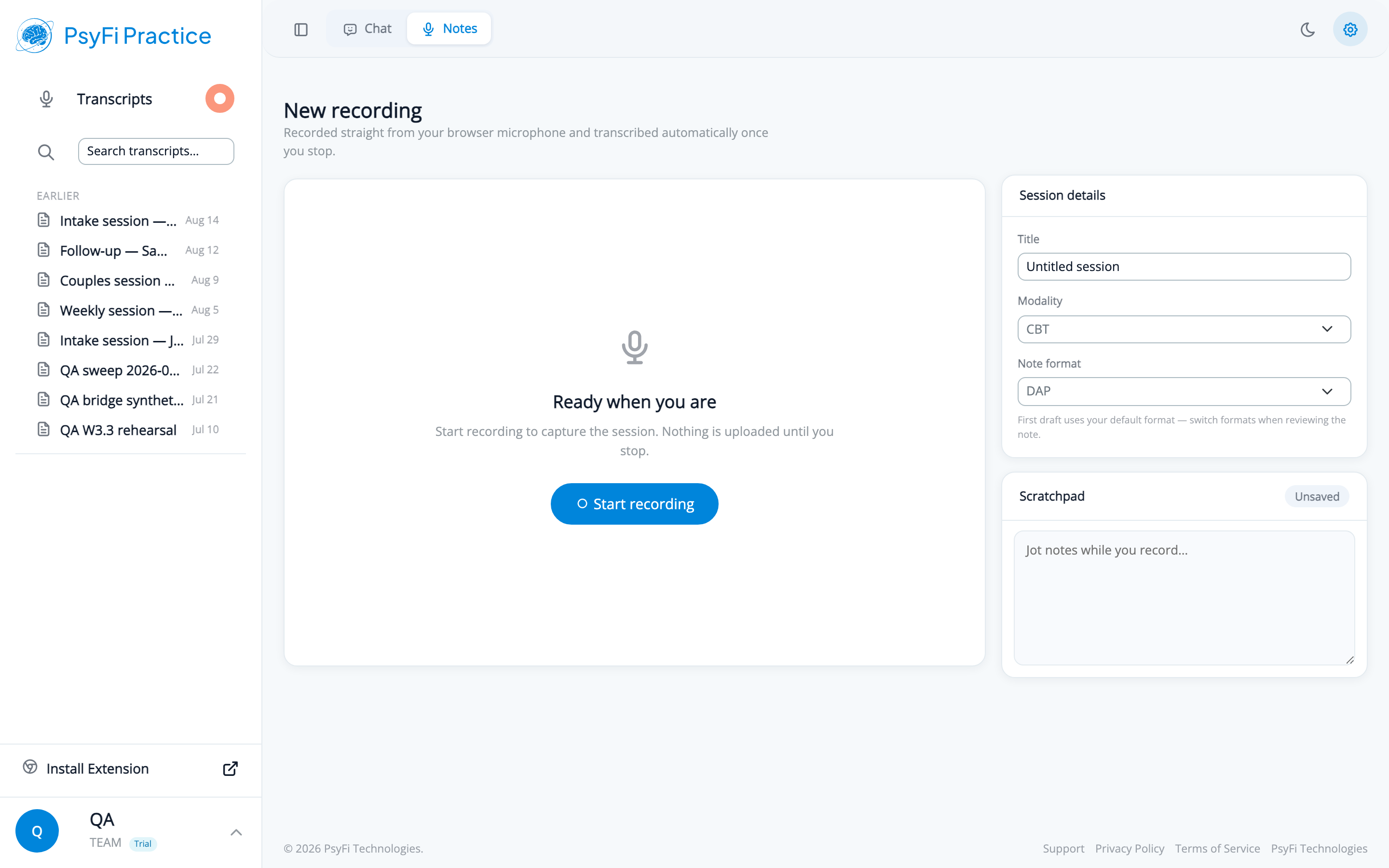
The centre panel says Ready when you are, and under it: "Start recording to capture the session. Nothing is uploaded until you stop." The first time you record in a browser you will be asked for microphone permission, and you have to grant it — do that before the client is in the room.
Press Start recording. A timer runs, with pause and stop controls beside it.
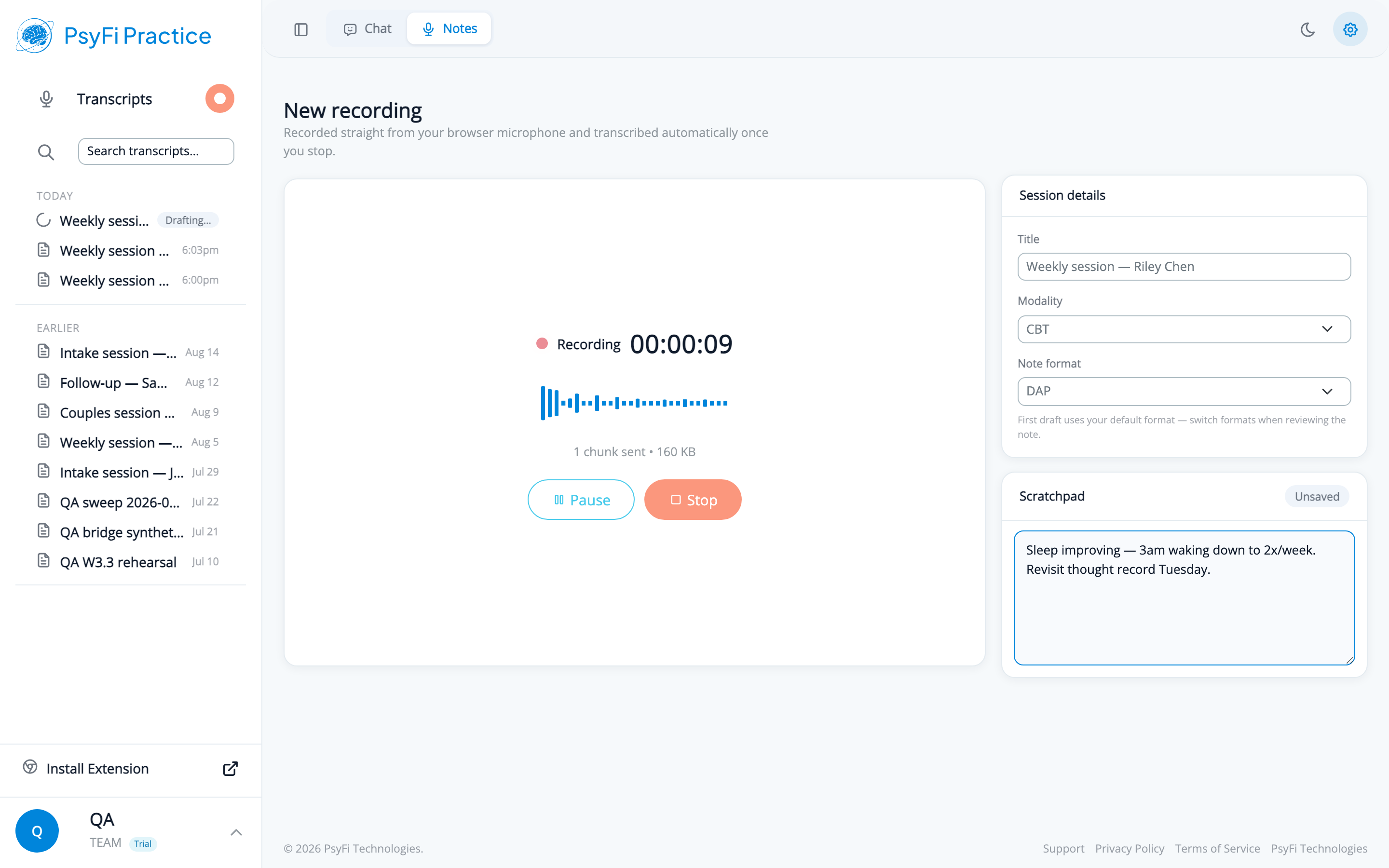
During the session, the Scratchpad below Session details takes what the audio cannot: affect, posture, a risk observation you want prominent, a hypothesis to test next week. It autosaves — the status pill moves Unsaved, Saving, Saved. In our Thursday session, the scratchpad line that ends up mattering is "tone shifted markedly when sister came up — flatter, faster. Different from how she talks about work."
Note what the scratchpad is and is not. It saves to the session record as your own notes; it is not an input to the AI draft, which is generated from the transcript alone. So that observation about tone will not appear in the generated note, and it is not supposed to. Its job comes at Step 3, when you read the draft against it.
Full detail on this step is in how to record a therapy session in PsyFi Notes. If the session is over video, the capture step differs and only the capture step — see recording a telehealth session.
Press stop when the session ends. Uploading your recording…, then Transcribing your session… with a live counter. This is the point where the audio leaves the browser; up to now it has not.
You land on the transcript page: session title, a metadata row with date and time, duration, and speaker count, the Transcript panel with speaker-labelled turns and a Find in transcript box, Copy transcript and Download buttons, and the generated note on the right.
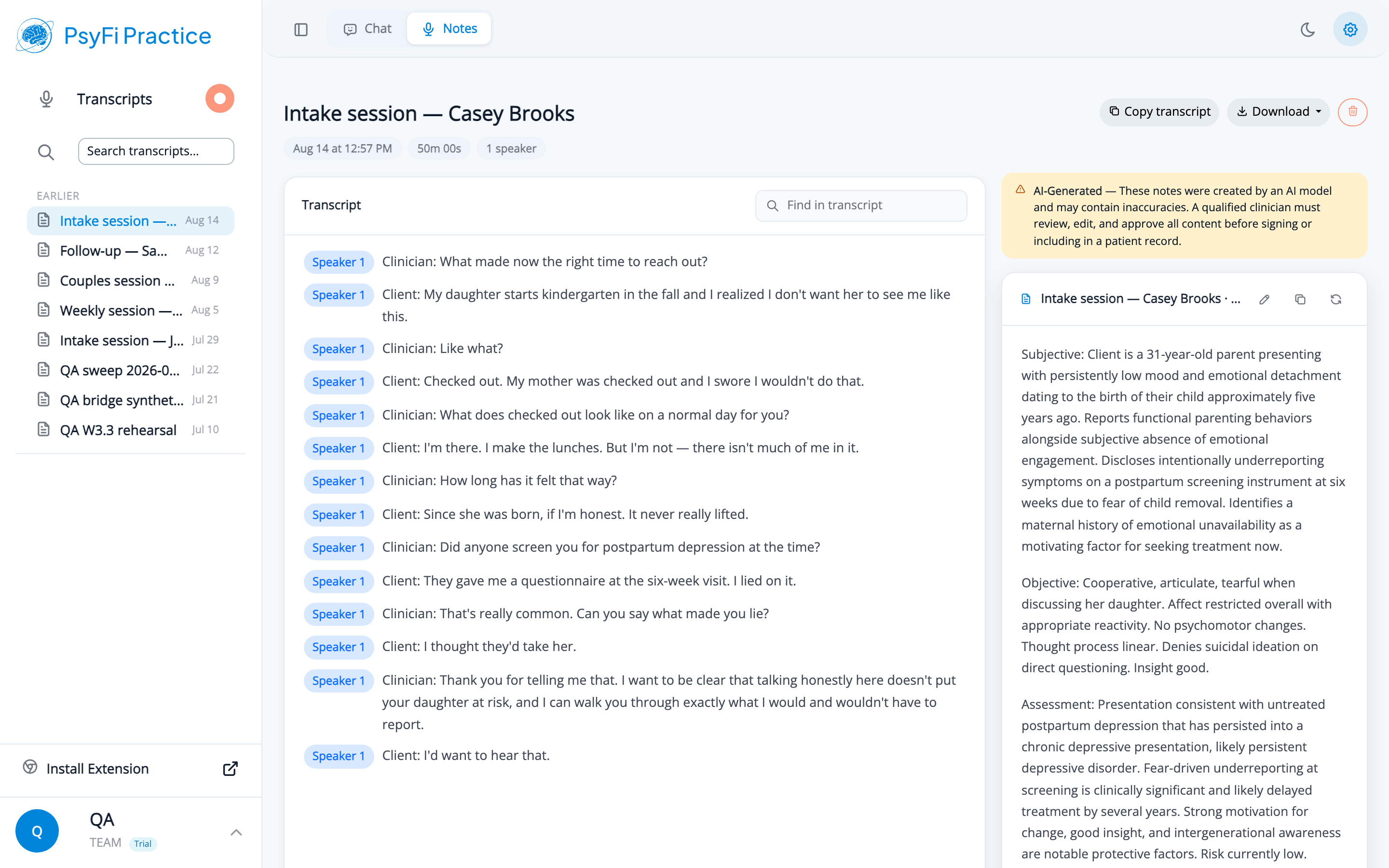
Above the note sits an amber banner: the content was created by an AI model, may contain inaccuracies, and must be reviewed, edited, and approved by a qualified clinician before it is signed or included in a patient record.
This is the step the whole workflow exists to make possible, so do not rush it. Read the draft against your memory of the session, in this order:
If the format turns out to be wrong for this session, use regenerate and pick another — SOAP, DAP, BIRP, GIRP, or Narrative, drafted from the same transcript. Do it before you edit, though: regenerating overwrites the stored note wholesale, so any corrections you have already made are lost rather than merged. How to choose a note format covers which to pick.
For most sessions, the workflow ends here. Review, edit, sign, done. The remaining steps are for the sessions that produce more than a progress note — like this one.
Our Thursday session left two open questions: does the treatment plan need rewriting, and is a psychiatric referral warranted?
Open the Chat tab and ask:
Pull up my most recent session transcript and give me a three-bullet summary of the main clinical themes.
A tool chip reading "Get Scribe session transcript" appears above the reply, showing the elapsed time and the matched session title.
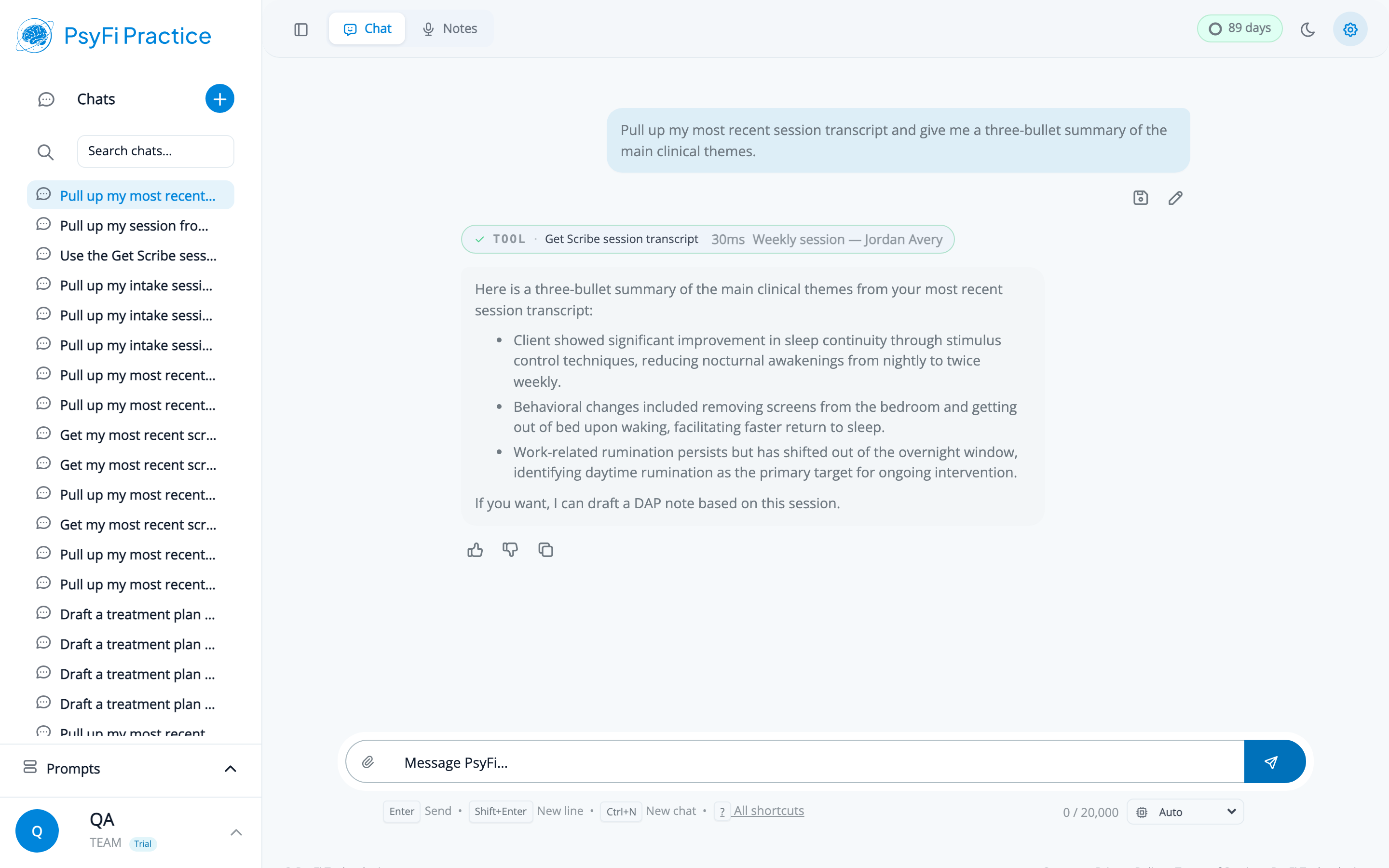
Check the title on that chip. Two seconds, and it is the only thing standing between a summary of your session and a summary of somebody else's.
You can ask for the most recent session, a session on a specific date, or match on the session title. Dates work most reliably as YYYY-MM-DD — and note that sessions are stored in UTC, so an evening session can be filed under the next day. If a date returns nothing, try the adjacent day. Descriptive titles sidestep this entirely, which is the second reason Step 1's title field matters.
The assistant has the transcript, any summary, and the generated note, so follow-ups build on all three:
Based on this session, what would need to change in a treatment plan built around work-related anxiety?
Is there anything in this session that would support a referral for a medication evaluation? Quote what the client actually said.
That second question is worth calling out as a pattern. Asking for the client's own words rather than a conclusion gives you something you can evaluate, instead of a judgment you would have to take on trust. More on this step in how to use a session transcript in chat.
You have decided the plan needs updating. Rather than watch four versions of it scroll past in chat, ask for a document:
Draft an updated treatment plan reflecting the shift from work anxiety to family conflict as the primary presenting concern. Keep the existing sleep goal. Three measurable goals with interventions. Put it in the drafting panel so I can edit it.
A tool chip reading "Update draft" appears and the document panel opens to the right of the conversation, rendering the plan as a formatted document — headings, numbered goals, interventions under each.
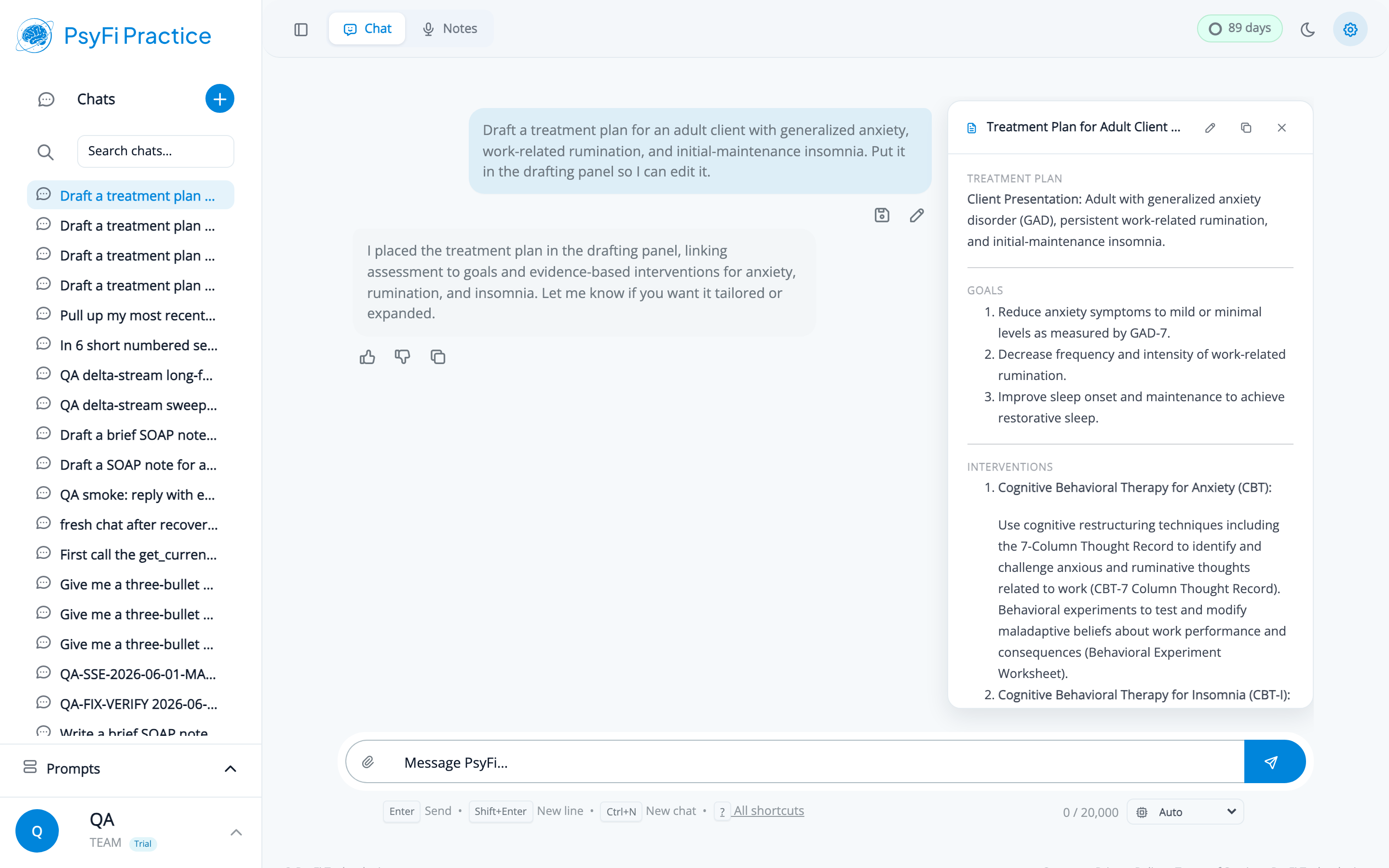
Now you have a split workspace. The conversation stays a conversation; the document accumulates beside it. Revise structurally through chat — "Goal 2 isn't measurable, add a frequency target and a review date" — and edit wording directly in the panel using its edit control. Collapsing the sidebar gives both more room, which is where most people end up once they are actually working.
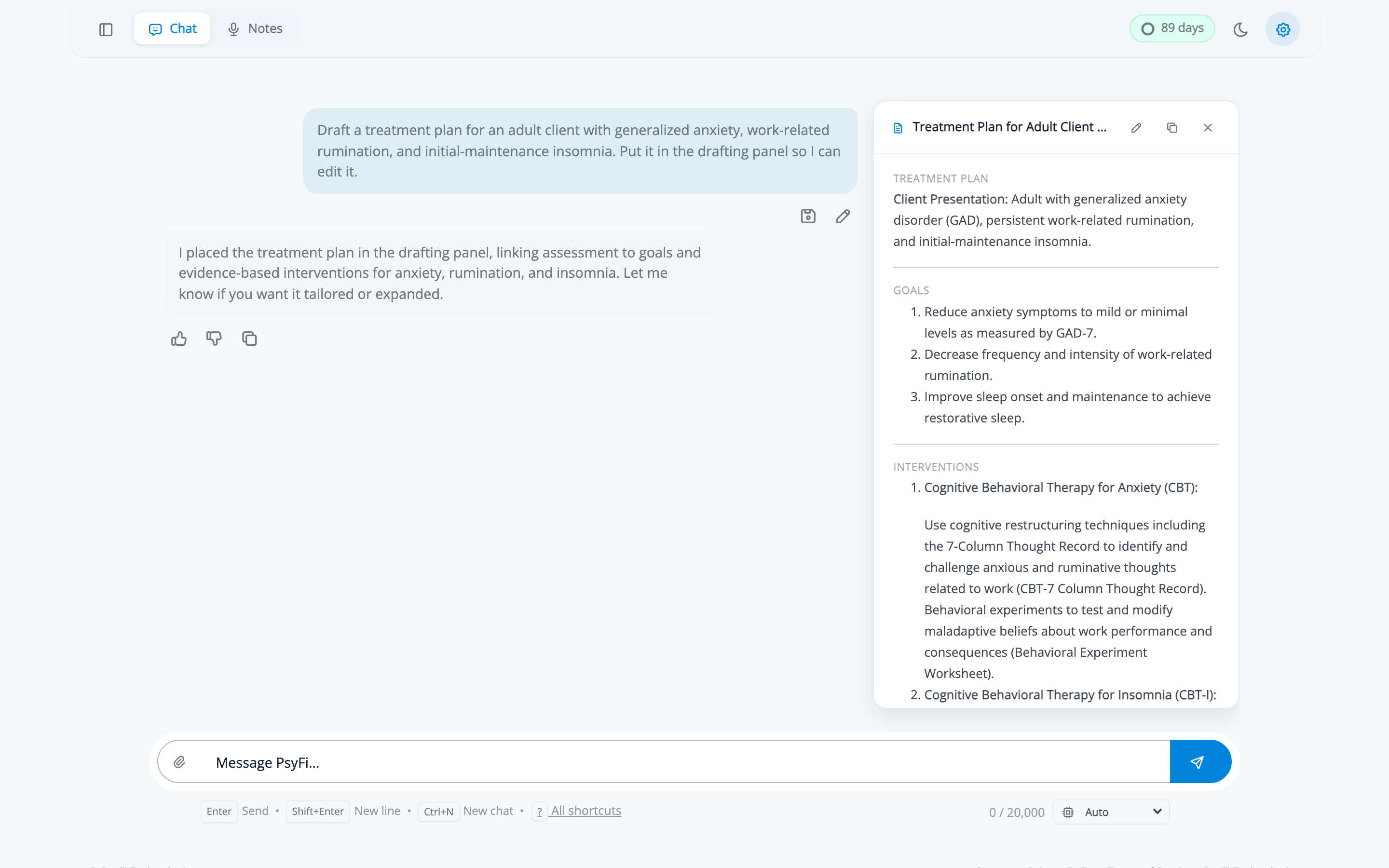
The draft persists with the chat. If the referral decision needs to wait for supervision on Monday, close it — the document is still there when you return. How to use the drafting panel goes further into this.
Every artifact this workflow produced is a draft: the progress note, the treatment plan update, and the referral letter if you wrote one. Each needs a clinician's review before it is signed, filed, or sent.
The final pass, across all of them:
Then sign it and file it in your record system, the way you always have.
Compare the two versions of that Thursday. Before: fifty minutes of session, then reconstructing it from memory an hour later, then a treatment plan update deferred to "sometime this month" because it needs an hour you do not have, then a referral letter written from a blank page at nine in the evening.
After: the session, a reviewed note, a plan update drafted and edited while the session is still fresh, and a referral decision made with the client's own words in front of you.
The claim is not that AI wrote your notes. It did not, and a note it wrote alone would not be defensible — as our comparison of SOAP, DAP, and BIRP formats sets out, what makes a note hold up is visible clinical judgment, not the template. What changed is that the mechanical work is mechanical now, and the hour you have left goes to the part that requires you.
Set realistic expectations for how much editing a draft needs with our post on AI therapy note accuracy, and if you have not yet worked out how you want to raise recording with clients, start with how to talk to clients about AI documentation.
PsyFi Notes is HIPAA-aligned clinical documentation software backed by a Business Associate Agreement. For questions about adopting this documentation workflow in your practice, contact our onboarding team at [email protected].