
CBT Homework Apps Clinicians Can Actually Assign in 2026
A practical review of CBT homework apps for therapists — thought records, behavioral activation, and mood tracking — with what makes clients actually finish the assignment.
Read morePull a recorded session transcript into a PsyFi Practice chat and ask for summaries, treatment plan updates, or referral letters — without copying anything.

To use a session transcript in chat, open the Chat tab in PsyFi Practice and ask for it in plain language: "Pull up my most recent session transcript and give me a three-bullet summary of the main clinical themes." A tool chip labelled "Get Scribe session transcript" appears above the reply showing the matched session title, and the assistant answers from the transcript, its summary, and the generated note. You can request the most recent session, a session on a given date, or match on the session title — no copying, no exporting.
The common post-session workflow is a bad one. You finish a session, the transcript lives in one place, and the thinking you want to do about it — a treatment plan update, a referral letter, a look at what has shifted over the last month — happens somewhere else. So the transcript goes through your clipboard, and the clinician becomes the integration layer.
Chat in PsyFi Practice can retrieve a recorded session directly. Once it has, the session is context for the rest of the conversation, and you can work on it the way you would work on it with a thoughtful colleague who happened to have read the transcript.
This guide assumes you already have a recorded session. If not, start with recording a therapy session in PsyFi Notes.
Go to the Chat tab. There is no button to press and no session picker to navigate. You ask.
Pull up my most recent session transcript and give me a three-bullet summary of the main clinical themes.
The assistant works out that it needs the session, retrieves it, and answers. Above the reply you will see a tool chip reading "Get Scribe session transcript", with the elapsed time and the title of the session it matched.
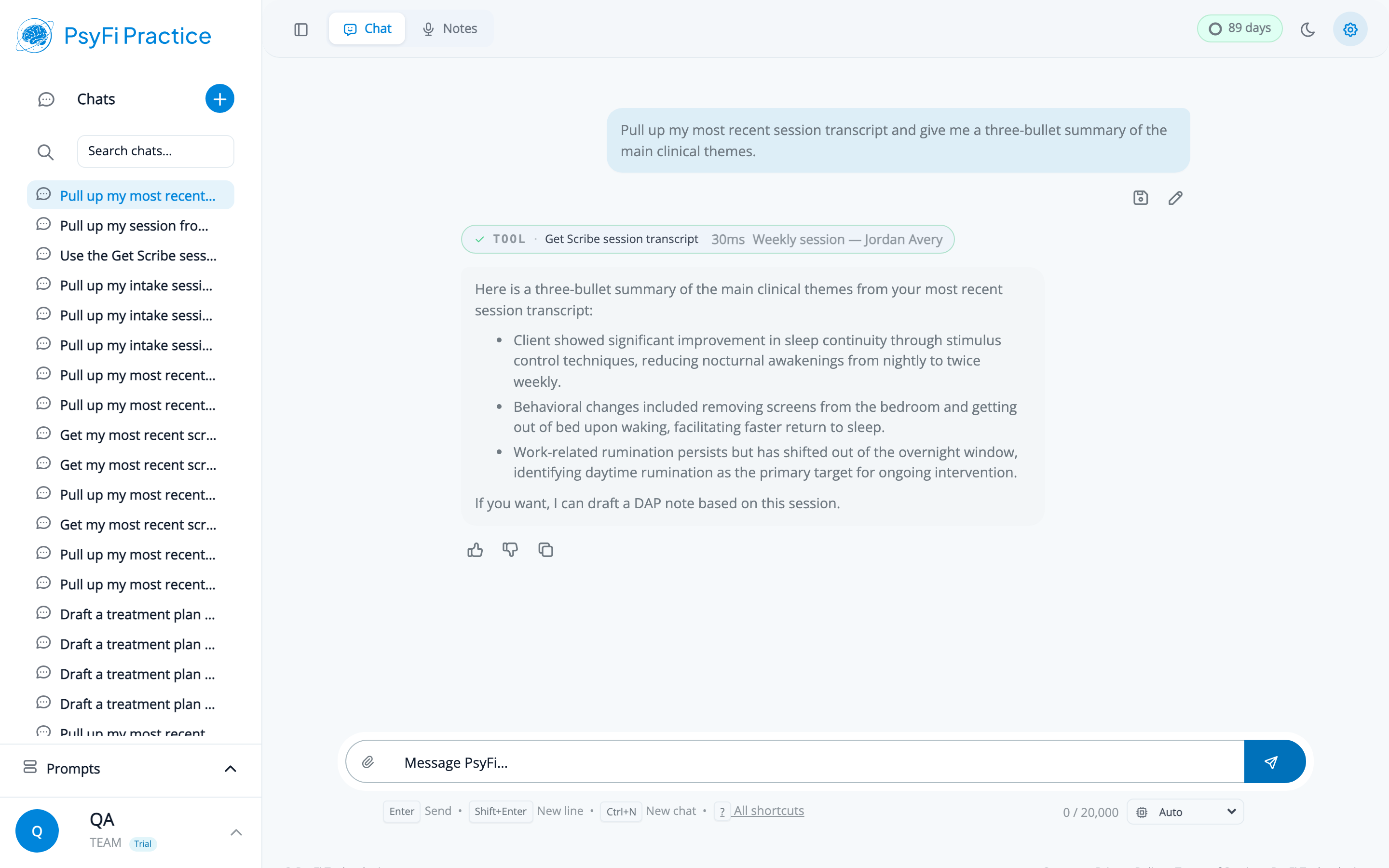
This screenshot uses a fictional demo session. The client and session content are invented for illustration.
Read the session title on that chip. It takes a second and it is the only check that stands between "the assistant summarized my Thursday intake" and "the assistant summarized a different client's session and I did not notice." Everything downstream depends on it having picked the right one.
There are three reliable ways to identify a session.
By recency. "my most recent session", "the session I just finished". Simplest and most common. Best right after you finish recording.
By date. Give the date. YYYY-MM-DD is the form that works most reliably — "pull the session from 2026-08-14". Natural-language dates are understood, but the numeric form removes the ambiguity between American and international ordering, which is worth the two extra keystrokes.
By title. "the intake session with the client presenting with panic symptoms", "the couples session from last week". This is where the session titles you wrote at record time pay off. A specific title is a better handle than a date, because it cannot be off by one.
Sessions are stored in UTC. A session you recorded at 8pm local time on a Thursday may be filed under Friday's date. If you ask for a date and get nothing back, try the adjacent day before you conclude the recording failed.
If you regularly see clients in the evening, matching on the session title rather than the date will save you this every time.
Once the transcript is retrieved, the assistant has the transcript itself, any summary, and the generated note. That combination is what makes follow-up questions useful rather than shallow — it is reasoning over the session and the clinical document at once.
Three things clinicians actually use this for.
Plans go stale quietly. A client's presenting concern shifts over six weeks and the plan in the chart still describes the problem they came in with.
Based on this session, draft an update to the treatment plan. The current focus is work-related anxiety, but the last few sessions have been mostly about family conflict. Flag which goals need rewriting.
You get a draft that names the shift and points at the goal language that no longer fits. You still make the clinical decision about whether the shift is real and whether the plan should follow it. For the wider case, see AI treatment plan updates in behavioral health.
If you want the draft to live in an editable document beside the conversation rather than scrolling away in chat, add "put it in the drafting panel" — see how to use the drafting panel.
Ten minutes before a session, with four other clients in between since you last saw this one:
Pull the last session with this client and give me a short prep sheet: where we left off, the homework we agreed on, and two things worth checking in on.
This is the use that converts skeptics, because it replaces re-reading a fifty-minute transcript with reading five lines.
Pull this session and draft a referral letter to a psychiatrist requesting a medication evaluation. Include the specific symptoms the client described and the functional impact they reported.
Referral letters are stronger when they carry concrete clinical detail rather than boilerplate, and mining a transcript for the right three examples is exactly the kind of work that used to make clinicians write the boilerplate instead.
Everything that comes out of a chat about a session is a draft. The same standard that applies to a generated note applies here: a qualified clinician reviews, edits, and approves before it is signed, sent, or filed. That is not a formality. A summary that reads plausibly can still miss the moment in the session that actually mattered, and a referral letter is a clinical communication with your name on it.
Two specific checks before anything leaves the chat:
For a fuller picture of where AI drafts hold up and where they need a hand, see our post on AI therapy note accuracy expectations.
A few habits that make session retrieval more reliable:
Pulling a transcript into chat is the middle of a three-step loop: record the session, reason about it in chat, draft the document that comes out of it. The whole loop is walked through end to end in the session-to-signed-note guide. For background on how the cross-product transcript retrieval works and what it replaced, see PsyFi Practice reading your session transcripts.
PsyFi Practice is HIPAA-aligned clinical documentation software backed by a Business Associate Agreement. For questions about working with session transcripts in your practice, contact our onboarding team at [email protected].