
CBT Homework Apps Clinicians Can Actually Assign in 2026
A practical review of CBT homework apps for therapists — thought records, behavioral activation, and mood tracking — with what makes clients actually finish the assignment.
Read moreHow to record a therapy session in your browser with PsyFi Notes: session details, the scratchpad, mic permissions, and what happens after you press stop.

To record a therapy session in PsyFi Notes, open the Notes tab, click Transcripts in the left sidebar, and press the red record button (or go straight to /scribe/record). Fill in the session Title, Modality, and Note format in the Session details card, grant your browser microphone permission the first time, and press Start recording. Nothing is uploaded until you press stop. When you do, PsyFi Notes uploads the audio, transcribes it, and produces a first-draft note in your chosen format — which you then review and edit before it goes anywhere near a chart.
Before any of the mechanics: an AI scribe only earns its place in a practice if the client knows it is there. The technical steps below take about thirty seconds. The part that actually matters takes longer and happens outside the software: the client needs to know the session is being recorded, what the recording is for, how long it is kept, and that they can decline without it affecting their care.
If you have not worked out how you want to have that conversation, our guide on how to talk to clients about AI documentation covers the language that tends to land well and the language that makes people uneasy. Get consent documented before the first recorded session, not after.
From anywhere in PsyFi Practice, click the Notes tab. In the left sidebar you will see Transcripts, which lists your past sessions newest-first with dates, plus a Search transcripts… box for finding an older one.
On the Transcripts row there is a red record button. That opens the recorder. If you would rather bookmark it, the direct path is /scribe/record.
The page is headed New recording, with a subtitle that tells you what the recorder actually does: "Recorded straight from your browser microphone and transcribed automatically once you stop." That is worth reading literally. This recorder uses your computer's microphone, which makes it the right tool for in-person sessions and the wrong tool for telehealth, where the client's voice is coming out of your speakers. For those, see recording a telehealth session.
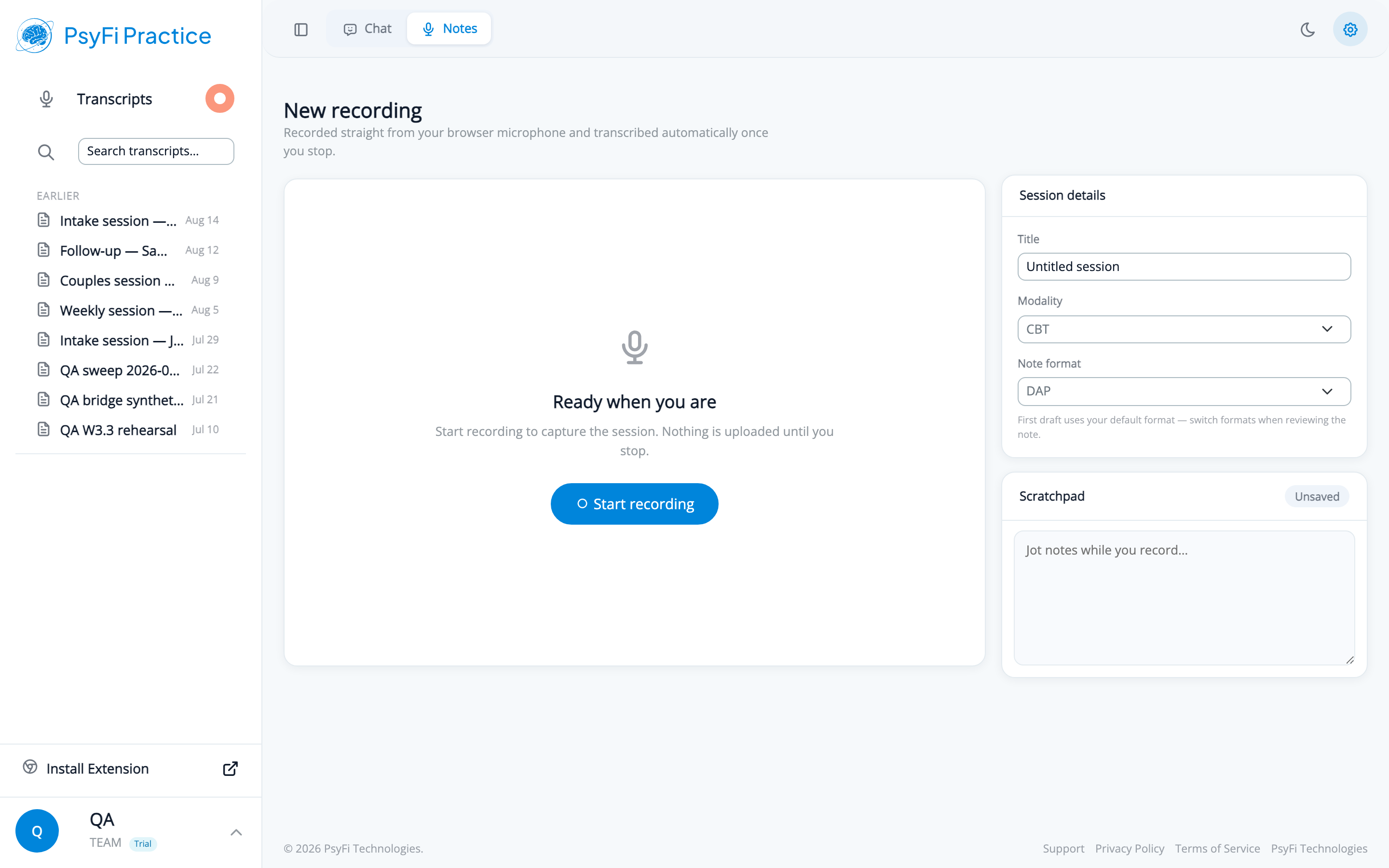
All screenshots in this guide use fictional demo sessions. The clients and session content are invented for illustration.
The Session details card sits on the right and has three fields.
Title. Free text. This is what you will be scanning for six weeks from now in a sidebar full of sessions, and it is also what the AI matches against when you ask it to pull "the intake session with…" in chat. A title like "Session 4 — panic symptoms, exposure hierarchy" earns its keep. "Tuesday" does not.
Modality. A dropdown — CBT and the other modalities you work in. This gives the note generator context about the frame you were working in, which shows up in how interventions get described.
Note format. A dropdown covering the five supported formats. The helper text underneath says exactly what you need to know: "First draft uses your default format — switch formats when reviewing the note." So this is not a locked-in decision. If you are unsure which to pick, choosing a note format walks through the five and how to set a practice default.
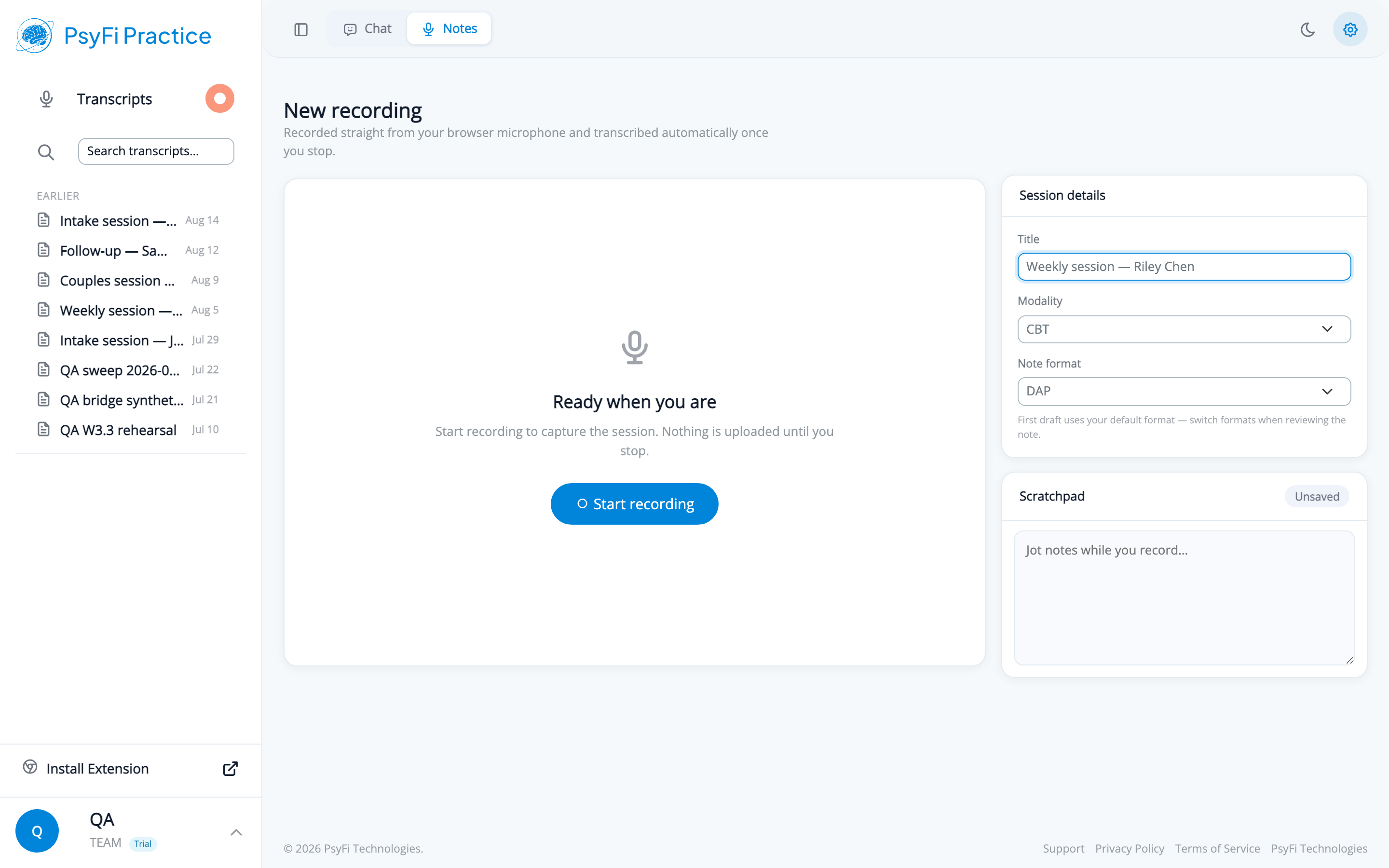
You can fill these in before you start or while you are recording. Doing it before is better, because the two minutes before a session are calmer than any two minutes during it.
The first time you record in a given browser, you will get the standard browser permission prompt asking to use your microphone. You have to allow it — the recorder cannot capture anything otherwise.
Two practical notes. First, do this before the client is in the room; a permission dialog is a bad first impression. Second, if you have previously denied microphone access to the site, the browser will not ask again, and the recorder will simply fail to start. In that case you need to reset the site permission in your browser settings rather than waiting for a prompt that is not coming.
If you use a headset or an external mic, plug it in and select it as your system input before opening the recorder.
The centre panel reads Ready when you are, with the line "Start recording to capture the session. Nothing is uploaded until you stop." and a Start recording button.
That second sentence answers the question most clinicians ask first. The audio is not streaming to a server in real time while your client is talking. It is captured in the browser for the duration of the session and only uploaded once you end the recording. The practical implication: keep the tab open. Closing it mid-session is the one way to lose a recording.
Press Start recording and a running timer appears, along with pause/resume and stop controls.
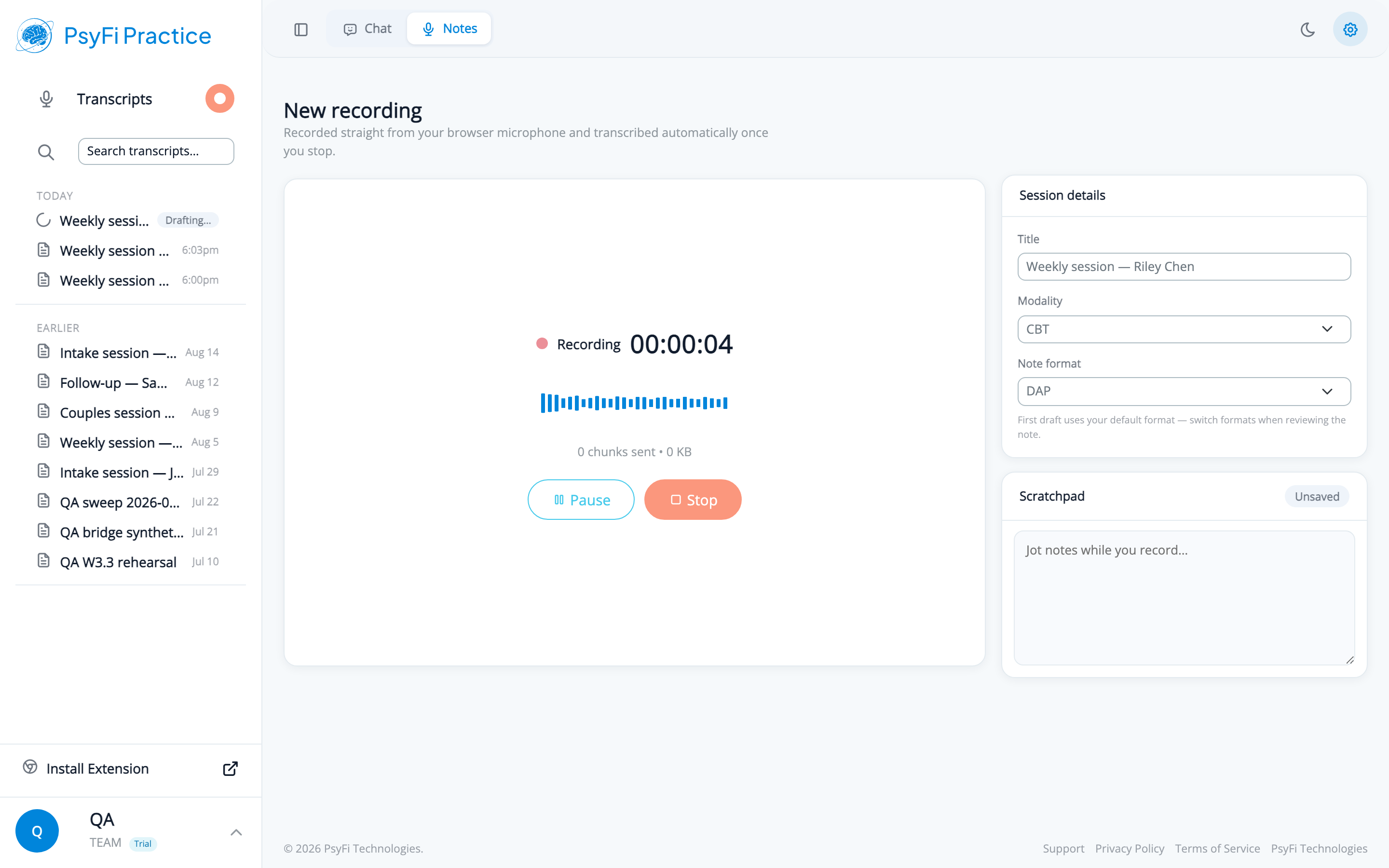
Pause is for interruptions you do not want in the record — a bathroom break, a phone call, the five minutes where the client is filling out a form. Stop ends the session and begins processing. Do not use stop as a pause.
Below Session details is the Scratchpad card, prompting you to "Jot notes while you record…". A small status pill moves from Unsaved to Saving to Saved as it autosaves, so you can watch it commit without thinking about it.
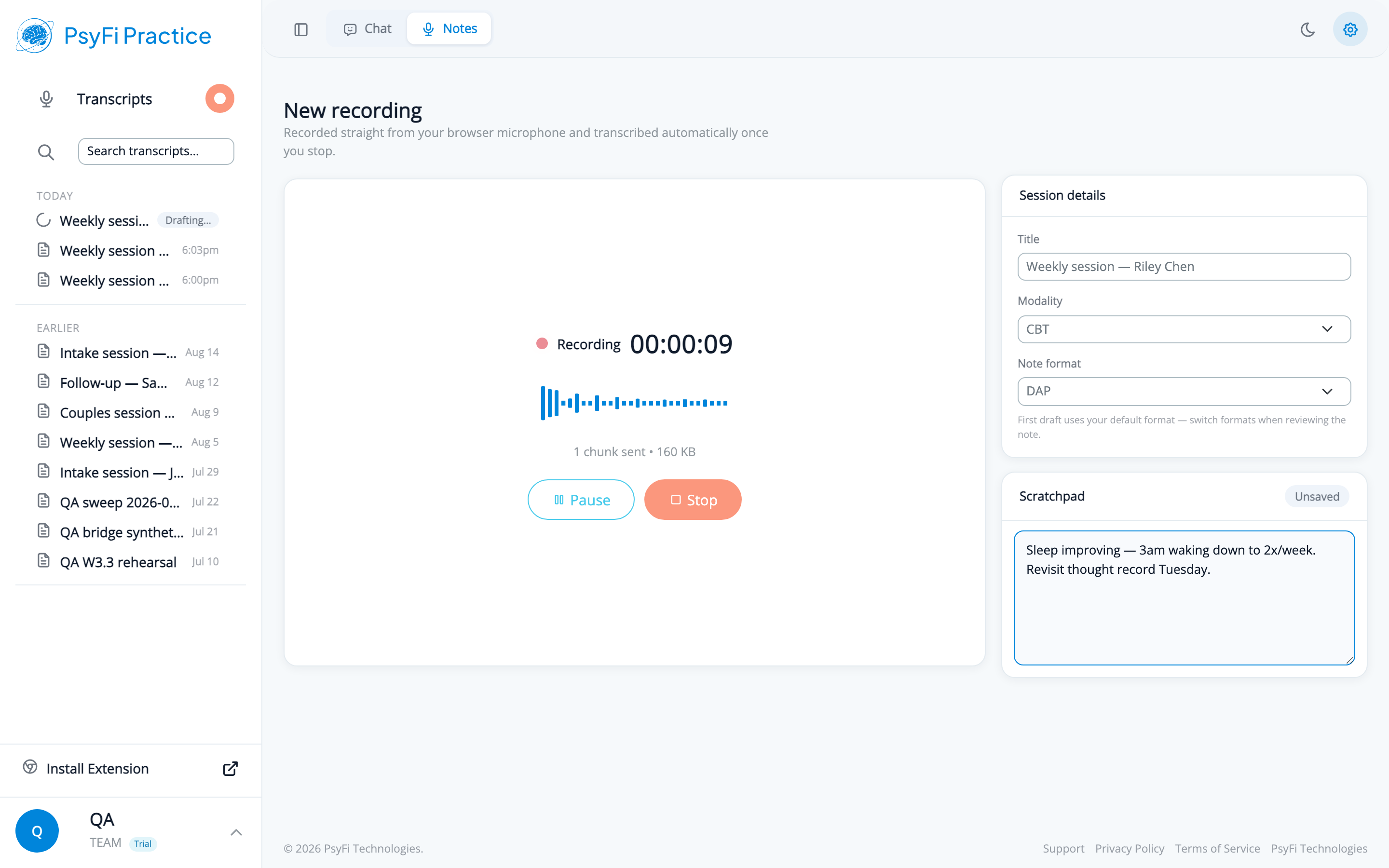
The scratchpad is not a second transcript. The transcript already has everything that was said. The scratchpad is for the things that were not:
One thing to be clear about, because it changes how you should use it: the scratchpad is not an input to the AI draft. The note is generated from the transcript, not from your notes. What you type is saved to the session record as your own material — there when you review the note, and there when you come back to the session weeks later — but it does not steer, inform, or improve what the model writes.
That makes it more useful, not less. It is a place to put what you want to remember without phrasing it for a machine or worrying about it surfacing in a draft: a half-formed hypothesis, a blunt observation, a reminder to follow something up. Write it for yourself, and use it as the thing you read the generated note against.
When the session ends, press stop. You will see Uploading your recording…, then Transcribing your session… with a live seconds counter. Transcription time scales roughly with session length.
When it finishes you land on the transcript page, which has:
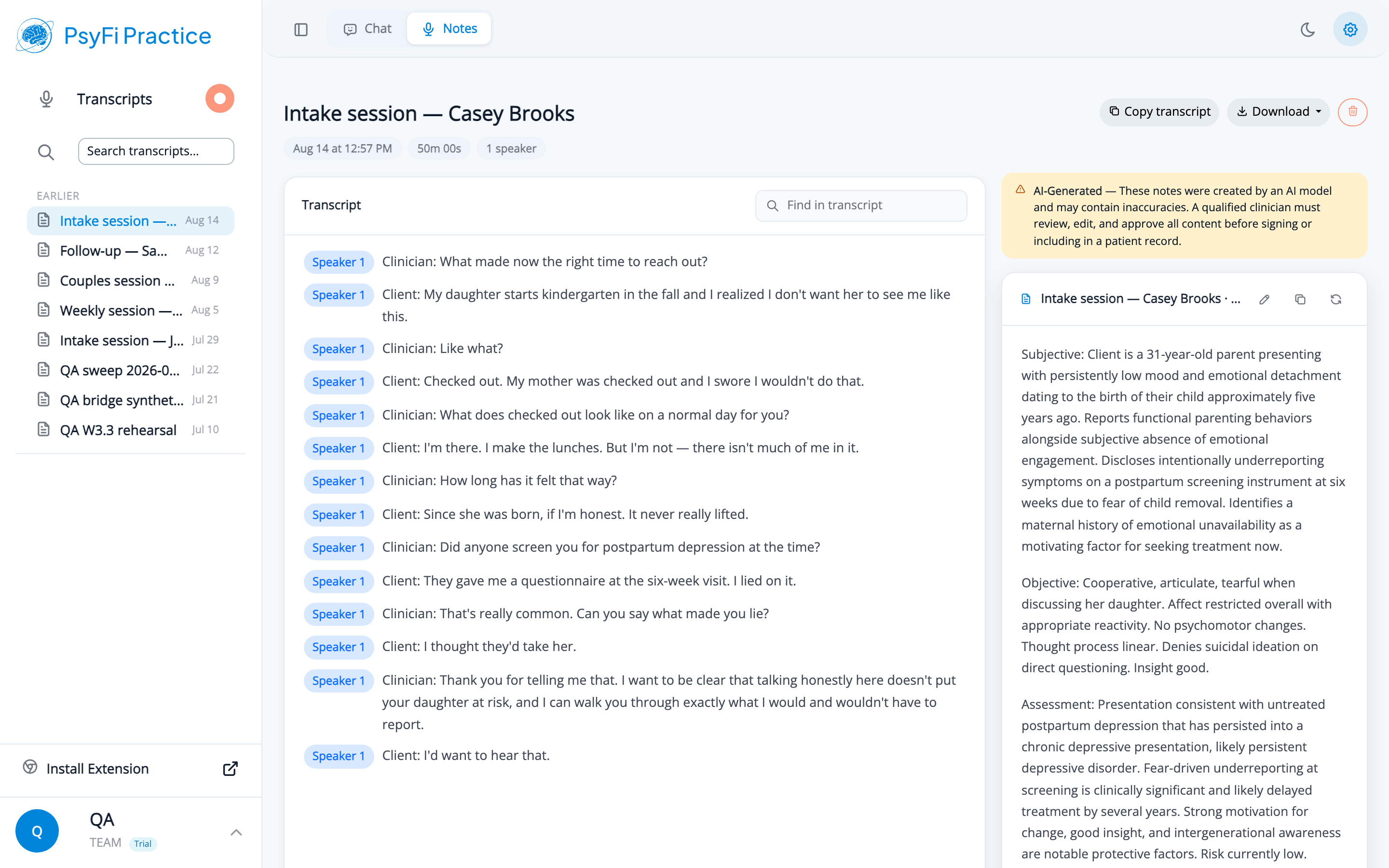
Speaker labelling handles more than two voices, which matters for couples and family work — a three-speaker session comes back with the turns attributed rather than run together.
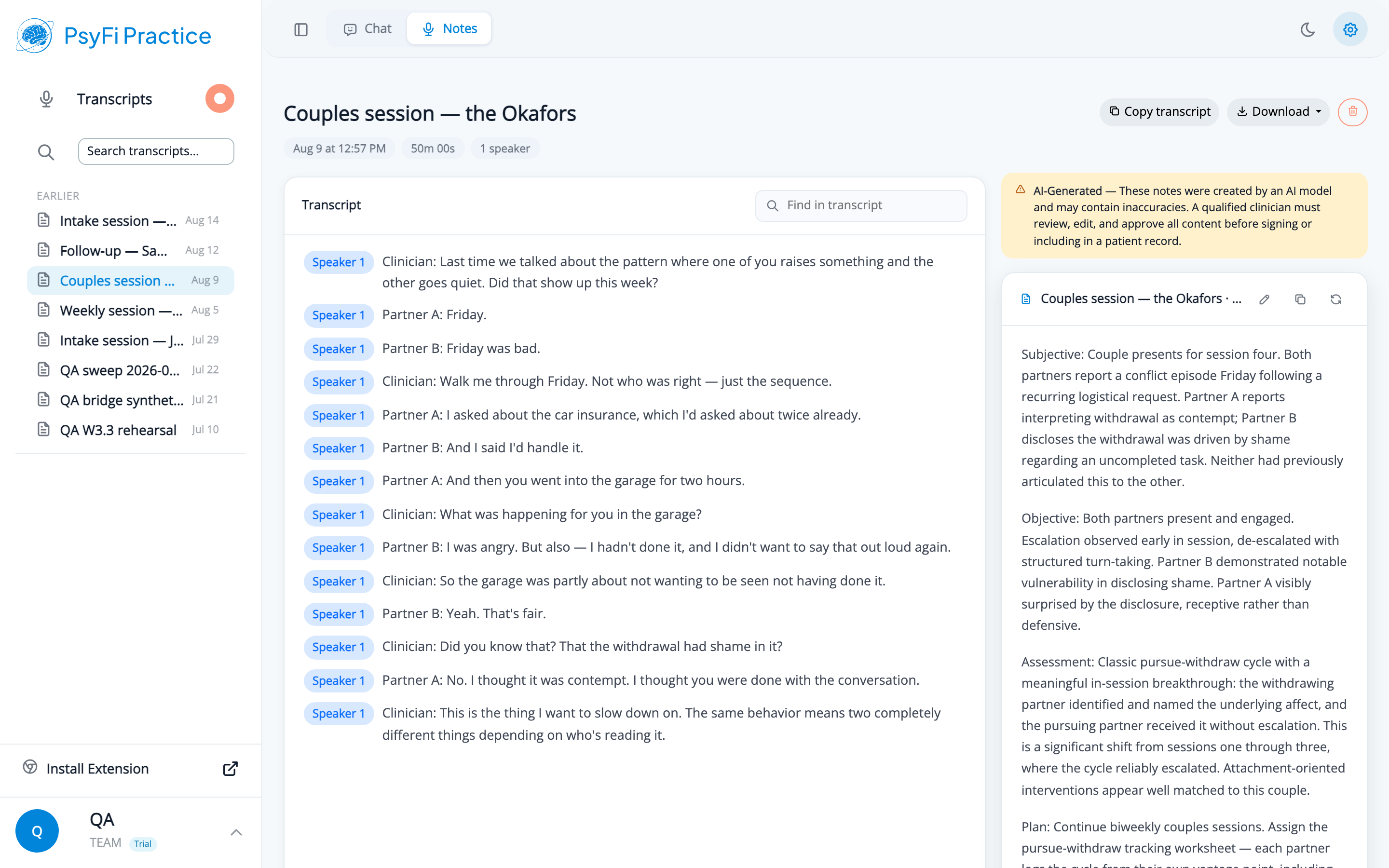
Above the generated note is an amber banner that reads, in part: "These notes were created by an AI model and may contain inaccuracies. A qualified clinician must review, edit, and approve all content before signing or including in a patient record."
Take that at face value. The draft is genuinely useful and genuinely not finished. What to check, in priority order:
If the format is wrong for this client or this payer, use regenerate and pick a different one — you do not have to re-record. Our post on what to expect from AI therapy note accuracy sets realistic expectations for how much editing a draft typically needs.
Recording is the first step of a longer loop. The transcript can be pulled into a chat conversation for summarizing, treatment-plan updates, or referral letters — see using a session transcript in chat — and the whole path from pressing record to a note you are willing to sign is laid out in the session-to-signed-note walkthrough.
PsyFi Notes is HIPAA-aligned clinical documentation software backed by a Business Associate Agreement. For questions about rolling out session recording in your practice, contact our onboarding team at [email protected].